













M99 Casino: Mobile Experience and Device Support
M99 Casino Mobile App: Download Guide for Android and iOS Devices
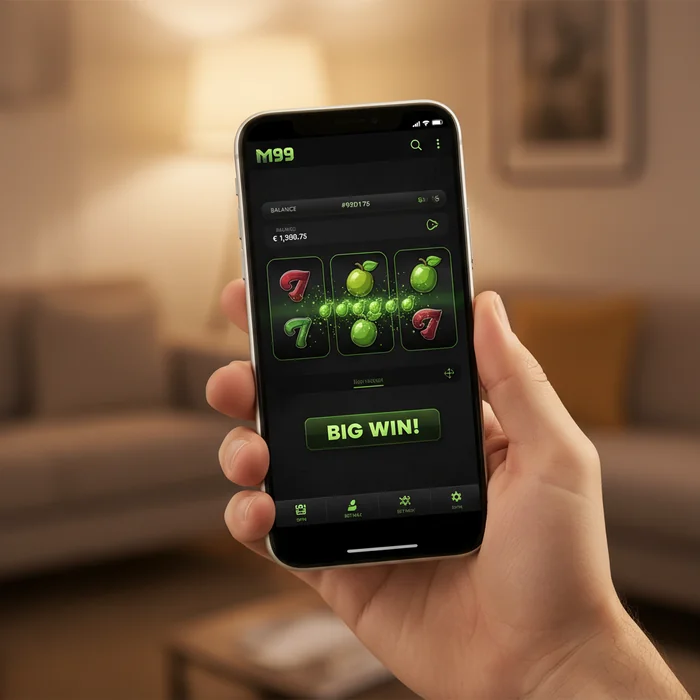
The M99 Casino mobile app puts our full platform — live casino tables, slot games, sports betting, and 4D lottery — directly in your pocket, built for players who are stepping into online gaming for the very first time. Whether you're commuting, relaxing at home, or squeezing in a quick session during a lunch break, the app is designed to feel immediately familiar, even if you've never placed a bet online before. We've structured the interface around simplicity: fewer menus to navigate, clearer labels, and a home screen that surfaces the most beginner-friendly games first.
Getting the app onto your device takes under five minutes, and you don't need to be technically confident to do it. Both Android and iOS installations follow a short, guided path — and if you ever get stuck, our live chat support is available around the clock to walk you through each step. Below, we've broken the process down by device type so you can follow along without guessing.
Where to Find the Official APK Download Link for Android
Android users won't find the M99 Casino app on the Google Play Store — this is standard practice for online gaming platforms in many markets, and it's nothing to be concerned about. The official APK file is hosted directly on our site at the M99 app download page, which is the only source we recommend. Downloading from third-party sites carries real risks: modified APK files can contain malware or outdated versions that don't connect properly to our servers.
The APK file is approximately 28MB — a quick download even on a 4G connection. Once downloaded, you'll need to grant your browser or file manager permission to install apps from unknown sources, which we explain in detail in the troubleshooting section below. The entire process — download, permission grant, install — typically takes around 3 minutes on a mid-range Android device running Android 8.0 or above.
Installing the App on iPhone Without the App Store
iOS installation works differently. Rather than a downloadable file, the M99 Casino iOS experience is delivered through a Progressive Web App (PWA) — a browser-based application that behaves like a native app once added to your home screen. Visit our platform through Safari on your iPhone, tap the Share icon at the bottom of the screen, and select "Add to Home Screen." The icon appears instantly, and from that point forward it opens in full-screen mode without browser bars cluttering your view.
This approach works on iPhones running iOS 14.0 and above, which covers the vast majority of devices currently in use. The PWA loads in under 4 seconds on a standard Wi-Fi connection and retains your login session between visits, so you won't be re-entering credentials every time you open it. One honest limitation: push notifications on iOS are only available from iOS 16.4 onward — if you're on an older version, you'll miss in-app alerts for live game events and 4D draw results.
Features Available Exclusively Through the Mobile App
While most of our core features are accessible on both desktop and mobile, the app unlocks a tighter, more responsive experience for specific game types — particularly live casino and in-play sports betting, where reaction time genuinely matters. We've optimised the mobile interface around touch controls, portrait-mode layouts, and reduced tap-depth navigation, so you reach the game you want in 2 taps rather than 5 clicks.
| Feature | Mobile App | Desktop Browser | Advantage |
|---|---|---|---|
| Live Casino Access | Full access, portrait & landscape | Full access, wide-screen layout | Tie |
| Sports Betting (In-Play) | Optimised touch interface | Standard interface | Mobile |
| 4D Ticket Purchase | Available, quick-select numbers | Available, full grid view | Desktop (easier number selection) |
| Push Notifications | Live draw alerts, bet results | Not available | Mobile |
| Slot Games | Touch-optimised reels | Mouse-click controls | Tie |
| Multi-tabling (Live Casino) | Limited — 1 table recommended | Multiple tables simultaneously | Desktop |
| Banking / Deposits | Most methods available | All methods available | Desktop (slightly broader) |
| Screen Real Estate | Compact, portrait-first | Full widescreen display | Desktop (for live dealer tables) |
Live Casino Streaming Quality on the M99 Casino App
Our live casino section streams dealer tables in HD at 720p by default, with the app automatically stepping down to 480p if your connection drops below 5 Mbps — this prevents buffering rather than dropping you from the table entirely. For first-time live casino players, this adaptive streaming means you're unlikely to experience the jarring freezes that can make a new player feel like something went wrong. The stream stabilises within 2–3 seconds of a connection fluctuation.
The mobile live casino interface shows the dealer feed, your bet controls, and the game history panel all within a single portrait-mode screen — no scrolling required. This is a deliberate design choice for new players who might otherwise feel overwhelmed managing multiple screen areas. If you prefer a wider view, rotating to landscape mode expands the dealer feed and shifts bet controls to a side panel.
In-Play Sports Betting and 4D Ticket Purchase on Mobile
In-play sports betting on the M99 Casino mobile interface is built around speed. Odds update in real time, and the bet slip is accessible with a single tap from any sports page — you don't need to navigate away from the live match view to confirm a wager. For beginners, we've added a "minimum stake" indicator directly on each market so you always know the lowest amount you can place before committing.
4D lottery ticket purchases are straightforward on mobile: select your 4-digit number using the quick-pick random generator or enter manually, choose your draw date, and confirm. The entire process takes under 60 seconds. One thing worth noting honestly: selecting numbers across a full grid is slightly easier on a desktop screen — the mobile number pad is functional but compact, which some players find fiddly when entering multiple tickets in one session.
App Performance, Compatibility and System Requirements
We've tested the M99 Casino app across a range of devices — from current flagship phones to budget Android handsets released in 2021 — to ensure the experience doesn't require premium hardware. Performance is consistent on mid-range devices, though older phones with less than 2GB of RAM may notice slower load times in the live casino section specifically.
Minimum Android and iOS Versions Supported
| Platform | Minimum Version | Access Method | App Size |
|---|---|---|---|
| Android | Android 8.0 (Oreo) | APK download from our app page | ~28MB |
| iOS (iPhone) | iOS 14.0 | PWA via Safari — Add to Home Screen | No storage required |
| iPad / Tablet | iPadOS 14.0 / Android 8.0 | PWA or APK (same as phone) | ~28MB (Android) / None (iOS) |
| Mobile Browser | Any modern browser (Chrome 90+, Safari 14+) | Direct URL — no install needed | N/A |
| Windows Desktop | Windows 10 / Chrome 90+ | Browser only | N/A |
Data Usage and Recommended Connection Speed for Live Games
Slot games are the lightest on data — a typical 30-minute session uses approximately 15–20MB, making them genuinely playable on a limited mobile data plan. Live casino streaming is significantly heavier: expect 200–350MB per hour at 720p, or around 120MB per hour if the stream auto-adjusts to 480p. If you're on a capped data plan, we recommend reserving live casino sessions for Wi-Fi connections.
The minimum recommended connection speed for uninterrupted live casino play is 5 Mbps download. Sports betting and 4D purchases work reliably at 2 Mbps — these features are data-light since they don't involve video streaming. The app does not support offline play in any category; an active internet connection is required for all game types.
Troubleshooting App Installation and Login Issues on Mobile
Installation problems are the most common friction point for first-time mobile players, and almost all of them fall into two categories: Android security settings blocking the APK, or login credentials not being recognised after install. Neither issue reflects a problem with your device — both are straightforward to resolve, and we've outlined the exact steps below.
Fixing APK Installation Blocked by Device Security Settings
Android's default security setting blocks installations from sources outside the Play Store — this is a protective measure, not a sign that our APK is unsafe. To install the M99 Casino Android app, you'll need to enable "Install Unknown Apps" for whichever app you used to download the file (typically Chrome or your device's default file manager). On Android 8.0 and above, go to Settings → Apps → [Your Browser] → Install Unknown Apps → Allow. On older Android versions, the toggle is under Settings → Security → Unknown Sources.
Once you've granted permission, locate the downloaded APK in your notifications bar or in your Downloads folder, tap it, and follow the on-screen prompts — the installation completes in under 30 seconds. After installing, we recommend switching "Install Unknown Apps" back to off as a general security practice. If the APK still won't install after enabling permissions, the file may have downloaded incompletely — delete it and re-download from our official app page.
Resolving Crashes and Slow Loading on Older Smartphones
If the app crashes immediately after opening, the most common cause on older devices is insufficient available RAM rather than a software bug. Force-close all other running apps, then relaunch M99 Casino. If crashes persist, clearing the app's cache (Android: Settings → Apps → M99 Casino → Storage → Clear Cache) resolves the issue in most cases without deleting your account data or login details.
Slow loading — particularly in the live casino section — on phones from 2019 or earlier is usually a combination of limited processing power and older graphics rendering. Switching the live stream quality manually to 480p (available in the in-game settings menu) reduces the rendering load noticeably. If you're experiencing login issues specifically — correct credentials not being accepted after a fresh install — try logging in through the mobile browser at the M99 login page first to confirm your credentials are correct, then return to the app. New players can create an account here if you haven't registered yet; registration takes approximately 3 minutes and requires only basic personal details to get started.